SnapSteps Mac App Store · coming soon

Screenshots in.
A manual out.

SnapSteps turns the thing you just did on screen into a numbered, annotated step-by-step guide - entirely on your Mac. No account, no upload, no browser tab.

Download on the Mac App Store Free to download - Pro is a single $29 unlock.
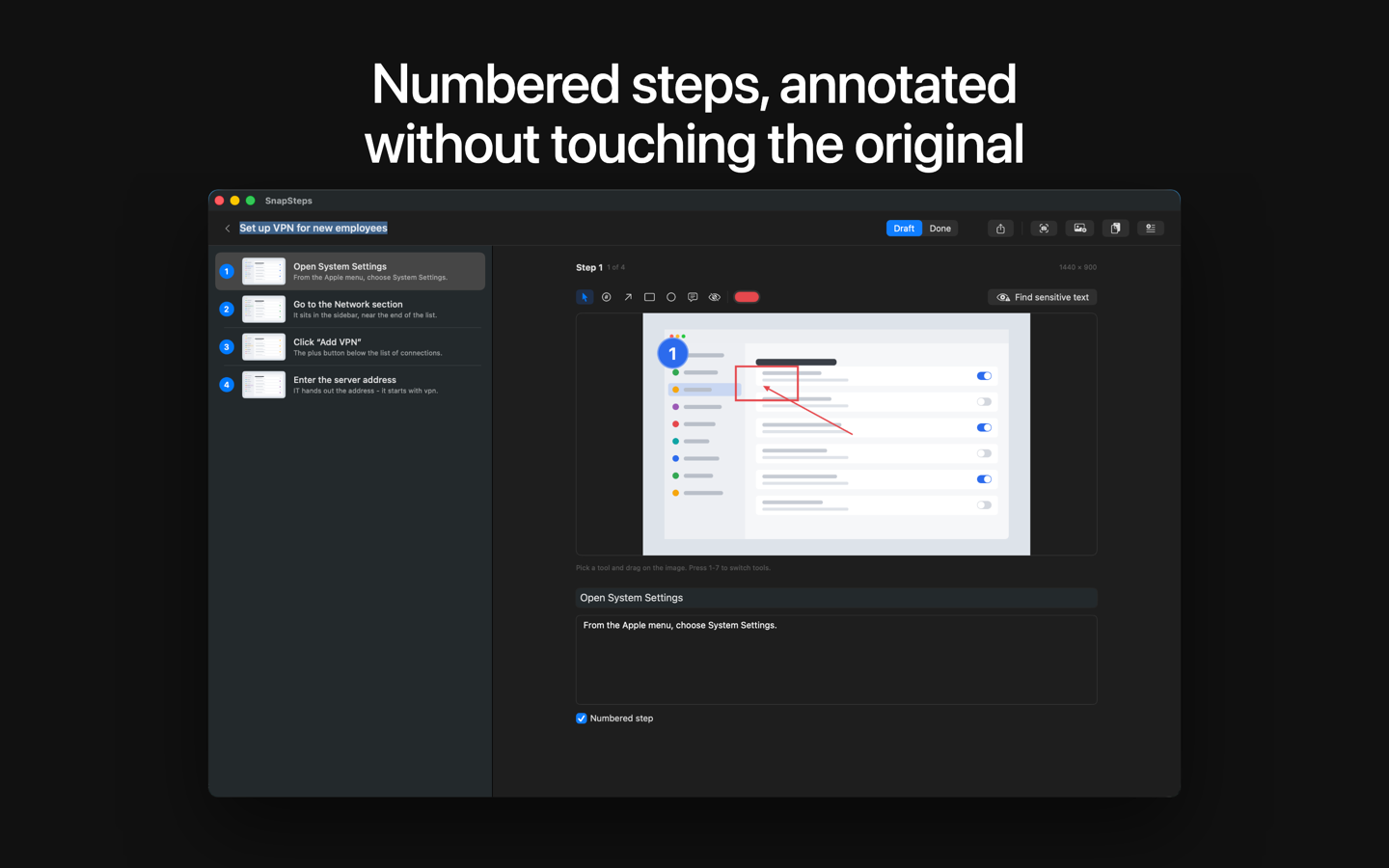
The SnapSteps editor: a list of numbered steps on the left, an annotated screenshot with an arrow and a highlight box on the right

Region captured · added as step 1 of 4 Screen read only when you press the shortcut

The flow

Five steps from screen to finished guide

The same motion every time: capture what you did, put it in order, mark it up, hide what must not ship, export. Keyboard-first at every stage.

  1. Capture - or import

    A global shortcut grabs a region or a single window, on demand. Drag in or paste images you already have, photos included. The screen is read only in the moment you press the shortcut - never on a timer, never in the background.

  2. Put it in order

    Each step gets a number, a title and body text. Reorder steps and the numbering follows - no stale badges left behind. A whole document can be assembled without reaching for the mouse.

  3. Annotate without destroying anything

    Arrows, boxes, ellipses, callouts and numbered badges. Every annotation is a vector drawn over an untouched original - delete it and the screenshot is back, byte for byte. Correct, restyle or re-export a manual months later.

  4. Redact what must not ship

    Blur and pixelate tools, plus an on-device scan that finds things like - email addresses, phone numbers, card numbers and key-like strings - and suggests a redaction for each hit. Nothing is uploaded; there is no API key to supply.

  5. Export to whatever they read

    PDF with a cover page, table of contents, your logo, an accent color and page numbers. Manuals live in a documented open format, so your work stays readable without this app.

    • PDF cover + TOC
    • DOCX Word
    • Markdown + images
    • HTML single file
    • JSON always free

The guarantee

Offline is not a mode. It is the architecture.

The app ships without the network entitlement, so it cannot transmit anything even in principle - there is no setting to check and no toggle to trust. Screenshots of internal systems, admin panels and customer records never leave the machine they were taken on.

The sensitive-text scan runs on the Apple Vision framework, on device. Your manuals are ordinary files in a documented open format, stored where you choose.

The price

Free to use. One purchase, ever.

Free

$0

  • Unlimited manuals and editing
  • Every capture and annotation tool
  • Your first export is clean
  • Then exports carry a small footer line
  • JSON export is never restricted
SnapSteps Pro

$29 one time

  • Removes the footer line for good
  • No subscription, no renewal
  • Processed by Apple via in-app purchase
  • Restores on any of your Macs

Built for technical writers, IT and sysadmin teams writing SOPs and runbooks, trainers making onboarding material, and support teams answering the same question for the tenth time.

Questions

Fair questions, straight answers

Does it really work without internet?

Yes - by construction. The app binary carries no network entitlement, so macOS itself prevents it from opening a connection. Capture, editing, redaction scanning and export all run locally.

What happens to my screenshots and text?

They stay in files you choose on your own disk. Nothing is collected, uploaded or logged - see the privacy policy, which is three paragraphs because there is nothing to disclose.

Which languages are supported?

English, Spanish, Ukrainian and Russian - the interface and the exported documents alike, so a manual can ship in the reader's language.

Is the free version crippled?

No. Unlimited manuals, unlimited editing, every tool. After your first clean export, exported documents carry a small "Made with SnapSteps" footer line - the $29 Pro unlock removes it permanently. JSON export never has the line.

Why does it ask for Screen Recording permission?

That is the macOS permission that allows taking a screenshot. SnapSteps reads the screen only at the moment you press the capture shortcut, and the image goes straight into your document - nowhere else.